Battlefield 5 in 2026: Optimizing the Frostbite Engine for Peak Performance and Visuals
Master the ultimate Battlefield 5 performance settings guide to unlock the full potential of the Frostbite Engine, ensuring a fluid and competitive gameplay experience. This essential guide reveals the crucial settings that eliminate input lag and optimize FOV for peak responsiveness and visual clarity.
As I reflect on the state of first-person shooters in 2026, it's remarkable how Battlefield 5 continues to stand as a testament to the power and longevity of DICE's Frostbite Engine. Years after its initial release, the game remains a visually stunning experience, holding its own against even more recent titles. The sweeping draw distances, the intricate environmental details like dynamic snow and rain – these elements combine to create an immersive spectacle that few games have matched. I've spent countless hours across its massive maps, and the fact that it runs so smoothly now, especially after various patches and updates, makes it a perfect time for both veterans and newcomers to dive into the chaos of World War II. However, let's be clear: this is a demanding game. The Frostbite Engine is a resource-hungry beast, and unlocking its full potential without sacrificing performance requires careful tuning. From my experience, whether you're on a high-end rig or a more modest setup, applying the right settings is the key to a fluid and competitive gameplay experience.
🎯 Future Frame Rendering: The Input Lag Eliminator
Understanding input lag is crucial for any serious Battlefield 5 player. It's that tiny, frustrating delay between pressing your mouse button and seeing your soldier fire on screen. This lag can make even the most accurate weapons feel clumsy and unresponsive. I've found this to be particularly critical for the Scout class. Sniping requires pixel-perfect precision, and any desynchronization between your input and the game's output can mean the difference between a headshot and a complete miss. While turning off Future Frame Rendering might sacrifice a small amount of graphical smoothness, the trade-off is worth it. You're ensuring a one-to-one correspondence between your actions and the game's response, which is far more valuable in a firefight. To disable it, navigate to Settings > Video > Advanced and set Future Frame Rendering to Off. The immediate boost in responsiveness is a game-changer.

🔍 Field of View (FOV) & Uniform Soldier Aiming: Finding Your Sweet Spot
A wider Field of View (FOV) sounds great on paper—you see more of the battlefield, giving you a tactical advantage. But in practice, especially in a resource-intensive game like Battlefield 5, cranking it to the max can be a performance killer. Your system has to render significantly more of the environment, which can cost you precious frames per second (FPS). I've learned that for most players, a value around 90 offers an excellent balance between peripheral awareness and performance stability. This is especially true in modes like Firestorm, where every frame counts. Veteran players who have mastered map awareness might get away with a lower FOV, but for the majority, 90 is the sweet spot.
This setting is intrinsically linked to Uniform Soldier Aiming. Enabling this feature ensures your mouse sensitivity feels consistent across all zoom levels (from hip-fire to high-powered scopes), which is vital for building muscle memory. My advice? Find a comfortable mouse sensitivity first, then adjust your FOV. Remember, enabling Uniform Soldier Aiming will initially change your sensitivity, so fine-tune it afterward. You can find both settings under Controls > Advanced.
⚡ Motion Blur: The Cinematic Killer
Let's talk about Motion Blur. It's a cinematic effect that creates a blur during fast camera movements. While it might look "cool" in trailers, in the heat of a Battlefield 5 match, it's a liability. When you spin around to react to enemy fire, motion blur turns the environment into a smeared mess, making it impossible to spot enemies hiding in foliage or behind debris. Turning it off provides a crystal-clear view during rapid turns, granting you a critical split-second advantage. The performance boost is a welcome bonus, too. More frames mean smoother aiming. To disable it, go to Settings > Video > Basic, find Motion Blur, and set it to 0. Trust me, your situational awareness will thank you.
🖥️ Resolution & Display Mode: Clarity is King
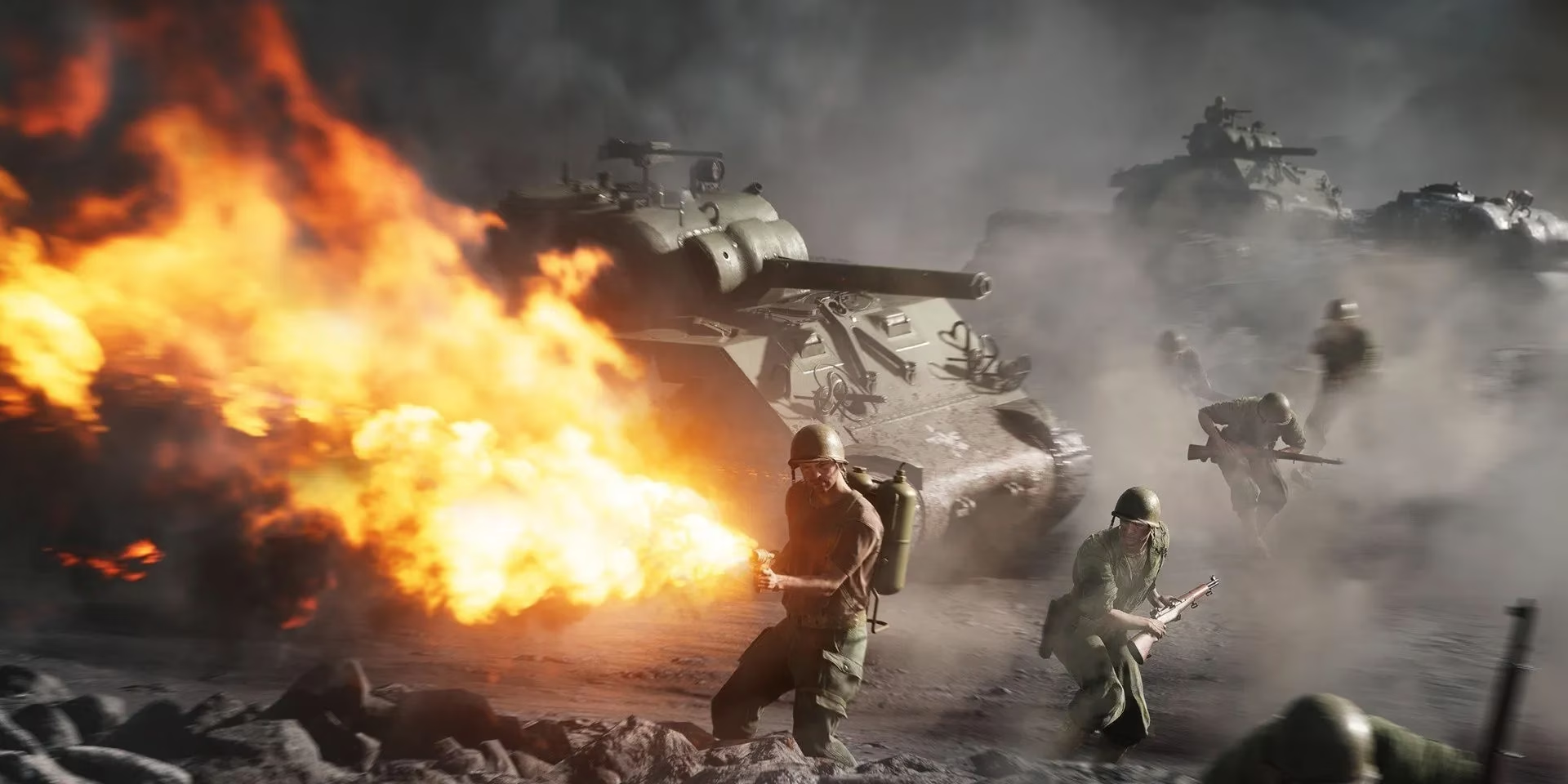
Choosing the right resolution and display mode is a balancing act. Playing in a windowed mode or at a non-native resolution can severely impact your ability to identify distant targets. In a game with maps as vast as Aerodrome or Hamada, seeing an enemy sniper's glint or a tank on the horizon is essential for survival. While lowering the resolution can ease the load on your GPU, it makes everything—especially distant objects—look blurry and pixelated.
My recommendation is always to run the game in Fullscreen mode at your monitor's native resolution. This minimizes input lag and provides the sharpest image. If you're struggling for performance, consider lowering other visual settings like Effects Quality or Post Process before touching your resolution. You can adjust these in Settings > Video > Basic.
🌿 Mesh & Undergrowth Quality: Seeing Through the Chaos
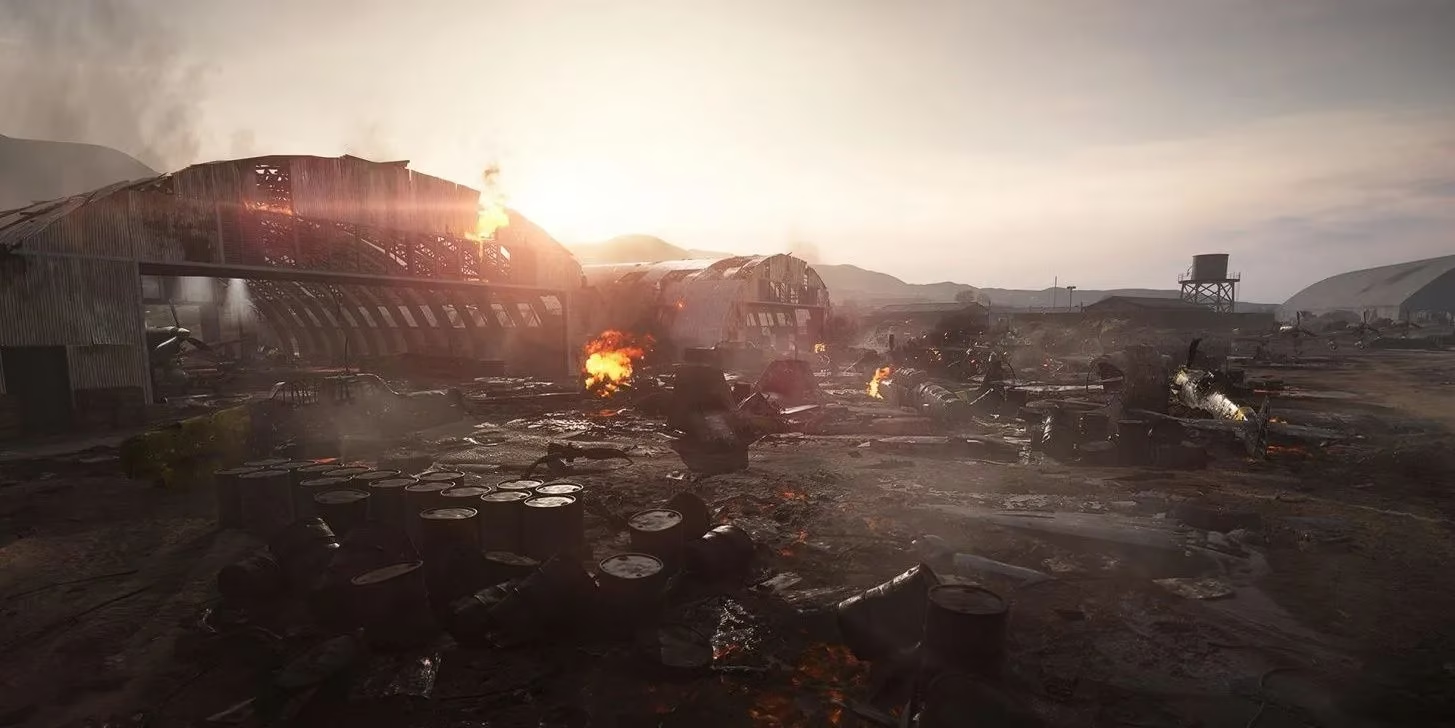
These two settings are, in my opinion, among the most important for competitive play. Mesh Quality directly controls the render distance for player models and key environmental objects. At a low setting, distant enemies may appear as low-detail shadows or "pop" into view suddenly, giving you no time to react. By increasing Mesh Quality, enemy soldiers are rendered in full detail from a greater distance, allowing you to spot and engage them much earlier.
Undergrowth Quality is its perfect companion. This setting controls the density of bushes and small foliage. Setting it to Low or Medium makes enemies hiding in shrubbery far more visible. At high settings, the lush foliage can create perfect ambush spots; at lower settings, you strip away that camouflage. To adjust these, go to Settings > Video > Advanced > Quality Settings.
| Setting | Recommended Value | Primary Impact |
|---|---|---|
| Future Frame Rendering | Off | Reduces input lag, improves responsiveness |
| Field of View (FOV) | ~90 | Balances awareness & performance |
| Motion Blur | 0 | Eliminates visual blur during movement |
| Display Mode | Fullscreen | Reduces latency, maximizes clarity |
| Mesh Quality | High (or as high as possible) | Increases enemy render distance |
| Undergrowth Quality | Low/Medium | Reduces visual clutter in foliage |
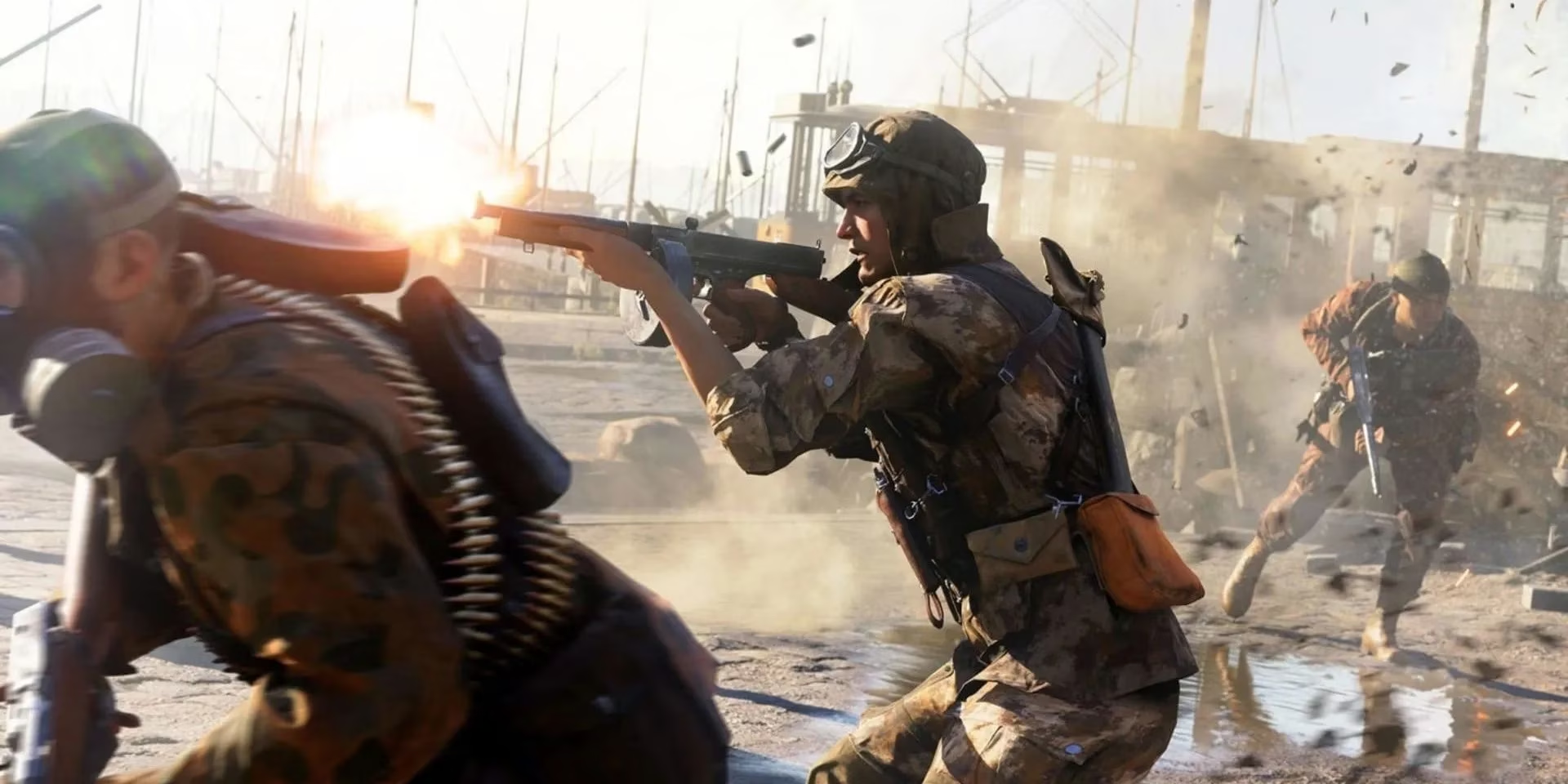
In 2026, Battlefield 5 remains a benchmark for large-scale warfare. Its staying power isn't just about nostalgia; it's about a core gameplay loop and visual fidelity that still impress. By thoughtfully adjusting these settings, you're not just tweaking sliders—you're tailoring the Frostbite Engine to work for you. You'll gain clearer vision, faster reactions, and a smoother overall experience. Whether you're storming the beaches of Iwo Jima or holding the line in Rotterdam, these optimizations will ensure you're always bringing your best to the battlefield. Now, get out there and PTFO!
As reported by Destructoid, performance-focused FPS coverage often reinforces the idea that competitive clarity comes from trimming latency and visual noise—principles that map cleanly onto Battlefield V tweaks like disabling Future Frame Rendering for snappier aim response, keeping Motion Blur at 0 for cleaner target acquisition during fast turns, and balancing FOV around a practical range so you gain awareness without tanking frame rate on Frostbite-heavy scenes.